



Report Writing: Top Tips for Dyslexia Assessors
Lucy Howes
Hone your craft with Dr Anna Smith, Head of The Dyslexia Guild
For those of us who write assessment reports, one of our major aims is to try to save time where possible and the other is probably to make sure that our reports are as accurate as they can be: so that we can achieve a professional feel to our reports. Our concerns about accuracy can often cost us time and I am sure I am not the only one who spends hours re-reading and correcting while watching precious time ebb away on the clock.
Target your recommendations
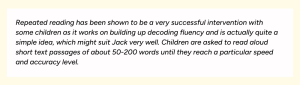
Many parents report that they cannot cope with the number of recommendations that they receive in reports and for some reports, less can be more. Think carefully about the individual you are assessing and what might suit this person. Rather than providing lists of interventions, write a small paragraph about the one you feel would suit this individual the most. For example, if reading fluency is an issue, have a look at repeated reading and describe this to the parent (as many won’t know what this is or how they might put this in place for their child).
Example in practice:
The following text is enough to engage the parent/teacher and then you can signpost them to a good website that you have found. Note that I have used the child’s name as this makes the recommendation feel more personal.
Read more about this method here:
readingrockets.org/blogs/shanahan-literacy/everything-you-wanted-know-about-repeated-reading
Create a database of recommendations for particular profiles
You could create a database of recommendations for particular profiles and save time this way – it is also a great way to boost your Continued Professional Development (CPD) log as you get to explore lots of different approaches that you may not have read about before. Make sure that the approaches you are recommending are evidence based: for example, repeated reading is supported by many studies so you can have confidence in this.
Check your descriptors
Inaccurate descriptors are possibly the most common errors made in reports. A quick way of checking these is to report them in a uniform way and that way they can easily be searched for. For example, if you write the following phrase using ‘within’ each time, you can use this word as a marker throughout the report and make sure the score matches the descriptor.
Example in practice:
‘On a task of short term auditory memory, Jack performed within the low average range, scoring 85’
Use the find function (image) to look for the word ‘within’ and you will see all your scores and descriptors together on the left hand side of your document and you can quickly look down the list to make sure your scores and descriptors are all matched. Of course, you can choose your own marker word or phrase to make this search that fits with your style of writing.

Fine-tune your task descriptions
This makes sense as you will be using these over and over for most of your reports. Think about the important components of a test and make sure those features are included in your description.
Example in practice:
The Test of Memory and Learning (TOMAL 2) subtests can sometimes be difficult to capture in a succinct description: there are increasingly long sequences, the examinee has to listen to them/the examinee has to reproduce/recall/repeat back information and finally this information is in the form of digits/numbers. Your definition needs to reflect all of these aspects of the test so one way of describing these tests is as follows:
In two tests of auditory sequential short term memory, the examinee was asked to listen to a series of sequences of digits and then letters that increased in length. After each sequence, the examinee was required to repeat back the digits or letters they had heard.
It is worth spending some time getting these descriptions right first time as you will be using them over and over again. I do still look at mine every now and then and make little changes.
What about AI?
It’s important to remember that open AI models use whatever text or images you input to train their large language model. It is only ever appropriate to use AI if you are using the premium version. This allows you greater privacy controls and to prevent information being taken out of context by the AI.
Even if you have access to the premium settings to use AI securely, it should be used strategically to help you evaluate your writing for clarity. If we use AI to generate sections of the report then we undermine the profession and strip a vital human voice and sound judgement from the report writing process. AI hasn’t met the child; you have.
Using Google Scholar to help with references
Using research to support your statements can also be a helpful addition. For example, you might want to reference important researchers when recommending a particular approach for spelling intervention (see example below).
Example in practice:
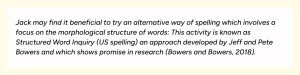
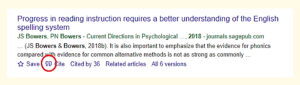
At the end of your report, in your appendix for further references, you can insert the reference very quickly and consistently by using Google Scholar.
If you put the name of the paper into google scholar, and find the study, you will have an opportunity to cut and paste the reference very easily, by clicking on the speech marks as shown below in the red circle. As you can see, the reference can be copied directly into your report with all the formatting nicely in place.
Consistent formatting
Ensure your headings, paragraphs and subheadings are in the same font size and colour
I find the format painter function in Word is really useful to make sure all my subheadings are in the same font size and colour. This enhances the professional look of a report.
- Look out for the paintbrush icon (image below).
- In Word this is located under the Home menu. If you are using Google Docs this can be found by clicking on the roller icon in the main toolbar
- Click on this while your cursor is on the text you want to repeat. This means that you can then transfer that format to another piece of text.
- Doing the same thing but double-clicking means you can transfer this formatting many times, until you choose to end the process by pressing the escape key on your keyboard.

It sounds obvious but remember that using standard fonts and darker font colours will help make the report more accessible. This is especially important considering that some parents may also be dyslexic.
Before you hit send…
There are a lot of aspects to check when you are writing a report and we all know how easy it is to make mistakes or oversights. Create a proofing checklist and read aloud once for meaning (would a parent be able to read it and quickly understand the key recommendations?) and once for technical accuracy; have you checked grammar, formatting, references, consistency of descriptors etc? Double check all the links work. Oh – and a final note – don’t forget to use a spell checking function. Simple but often forgotten!
Article written by Dr Anna Smith, Head of The Dyslexia Guild